This digest compiles the latest from Apple Insider.
Today’s Apple Insider Roundup
'Father of the iPod' says Apple screwed up AI and should have kept going with the car
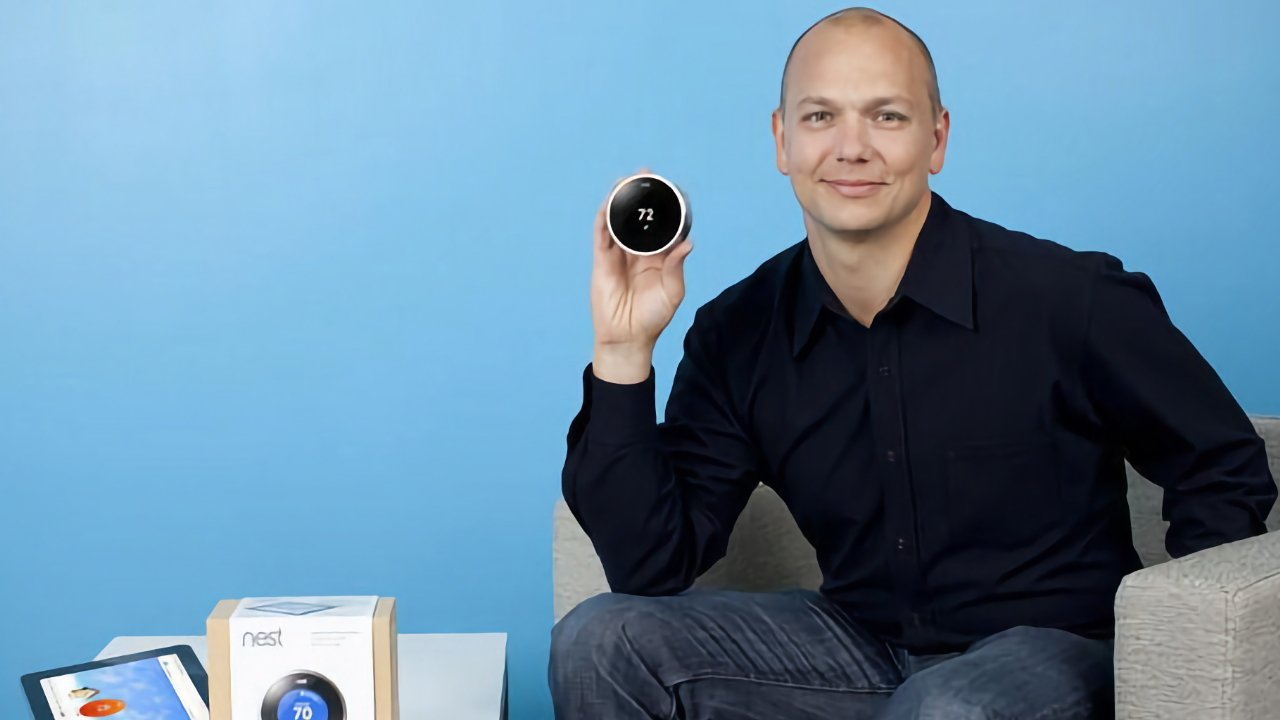
In an extensive new interview, ex-Apple iPod designer Tony Fadell calls out Apple Intelligence, says Apple got the car project wrong, but could now do an AI pin.
It’s almost two decades since Tony Fadell left Apple and started the Nest smart thermostat company. But recently his name has been mentioned as a possible successor to Tim Cook — although possibly only by himself.
He has now given an hour interview to the Newcomer Podcast about everything he would do as Apple CEO — and not do.
iPhone 16 gives Apple seven of the 10 best-selling phones in 2025
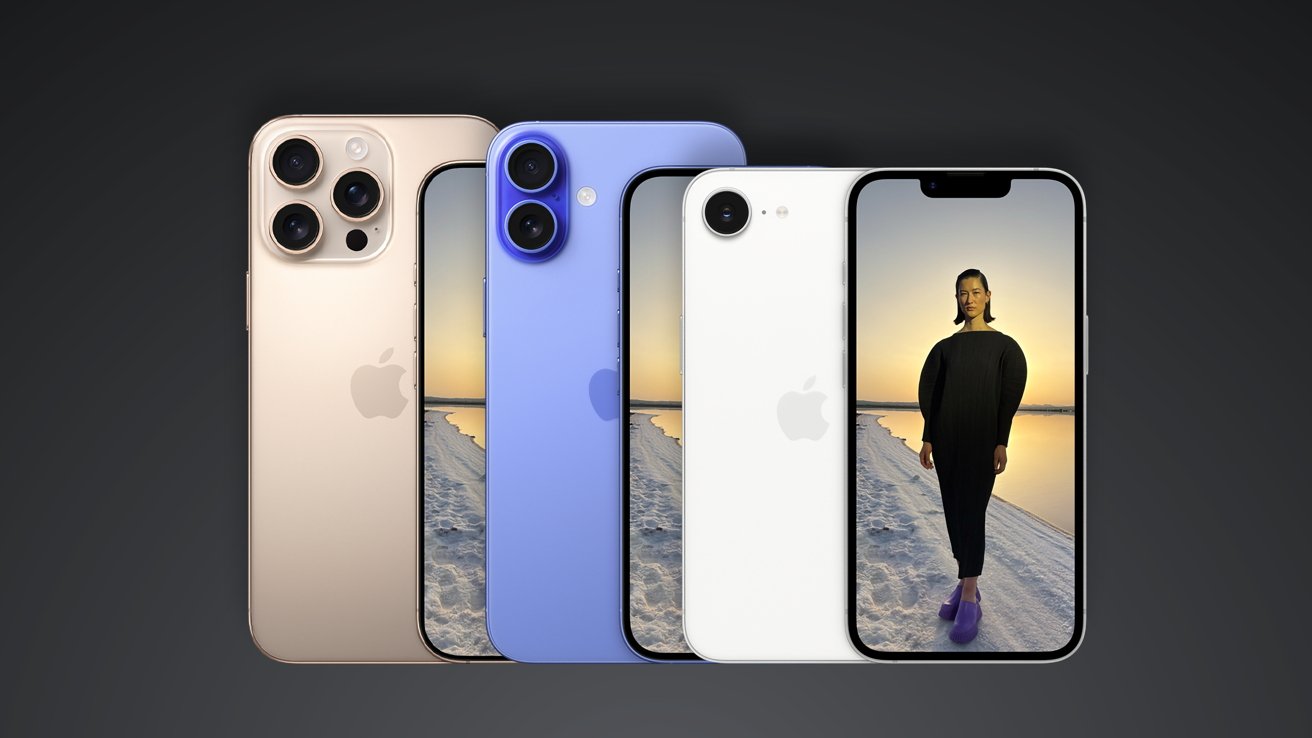
New data shows the iPhone 16 was the best-selling phone of 2025, with Apple’s iPhone accounting for seven of the top 10 devices of the year and Samsung making up the rest.
That data, provided by market-watchers Counterpoint Research, has Apple’s 2024 entry-level iPhone 16 proving the biggest winner among buyers. Apple’s 2025 lineup was also represented, starting with the iPhone 17 Pro Max in fourth spot.
Between those two devices, the premium iPhone 16 Pro Max was second, with the iPhone 16 Pro third. The first non-Apple device, Samsung’s budget Galaxy A16 5G, found a home in fifth.
You may not have the Creator Studio iWork apps installed on your Mac yet
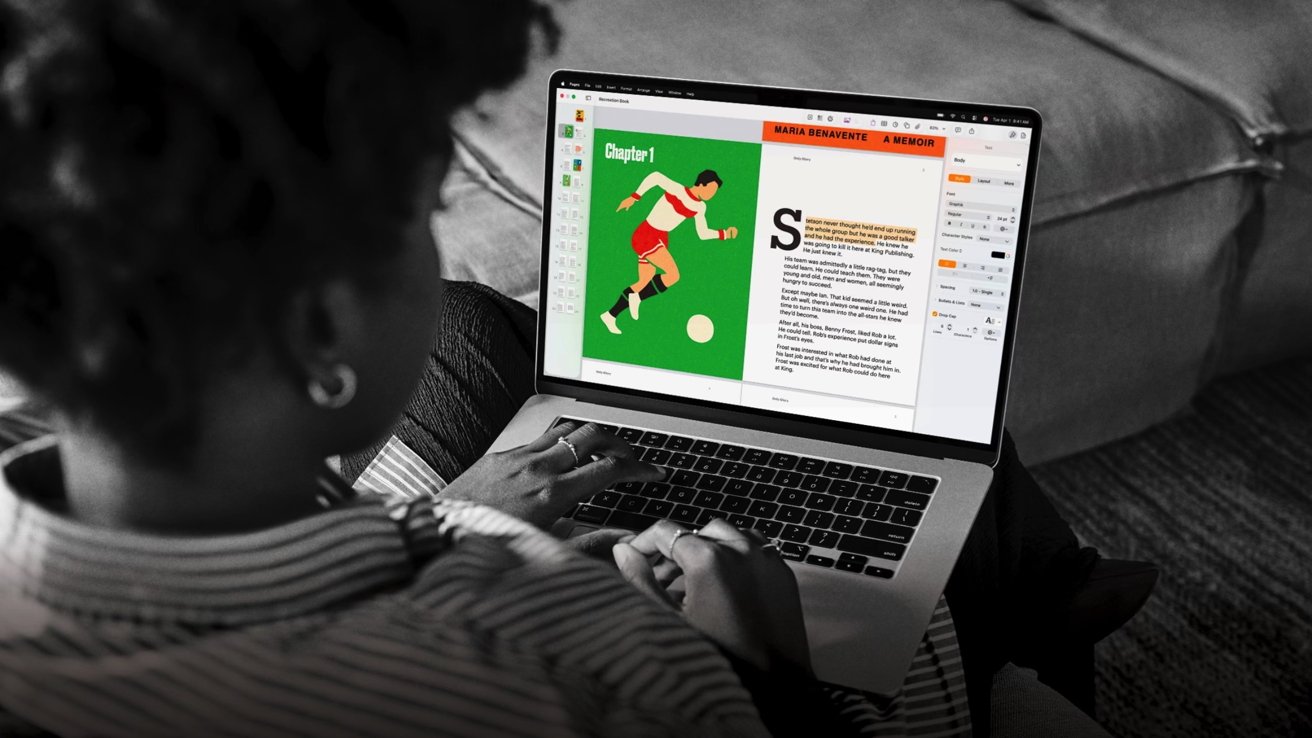
If you clicked “update” for Creator Studio iWork apps on your Mac, and walked away, you’re not quite done yet. Here’s what you need to finish the process, and get the new versions.
There’s a technical reason for what Apple did here, which we will not delve that deeply into. Basically, the old Mac versions of the iWork apps were bundle-identified as macOS-specific. The new versions are universal working across macOS, iPadOS, and iOS.
Because of that change in bundle identifier, there’s no straight-through path to upgrading your older iWork apps to the new ones in one click. Your “update” needs to go through a new install process from the Mac App Store.
How to view translated lyrics in Apple Music
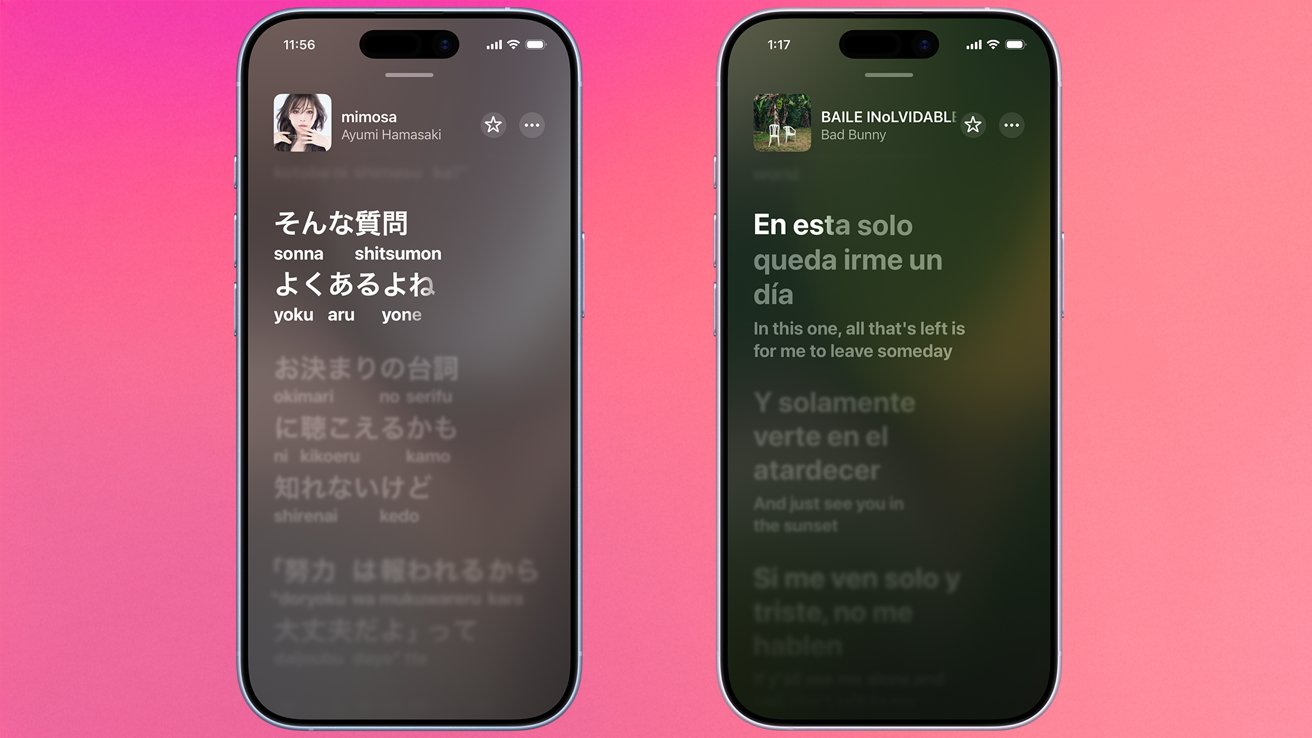
Apple’s iOS 26 brought some new features to Apple Music. Here’s how to view both Lyric Translations and Lyric Pronunciation.
In iOS 26, Apple Music has gained a couple of pretty neat new features. While you’ve been able to view lyrics in Apple Music for a while now, the company has expanded the feature to offer Lyrics Pronunciation and Lyrics Translation.
If you’ve always wanted to sing along with your favorite foreign songs, Apple Music has got your back. Lyrics Pronunciation will offer phonetic guides to make it easier to sing without needing to know a foreign language.
End of today’s Apple Insider roundup.