If you spend any time developing in the WordPress ecosystem, you already know that content is king. But creating, formatting, and publishing that content daily can quickly become a repetitive grind. What if you could write a script once, step back, and watch a serverless pipeline automatically generate and publish posts for you every single day?
In this tutorial, we are going to bridge the gap between AI and content management. We will use Python as the glue to fetch content from an AI API (like Google Gemini or OpenAI), format it, and push it directly to your website using the WordPress REST API. Then, we will automate the entire process using a GitHub Actions cron job.
Whether you are a seasoned PHP developer looking to dabble in DevOps or just someone tired of manual data entry, this guide will show you how to build a fully automated, hands-free blogging workflow.
The Architecture: How It Works
Before writing any code, let’s visualize what we are building.
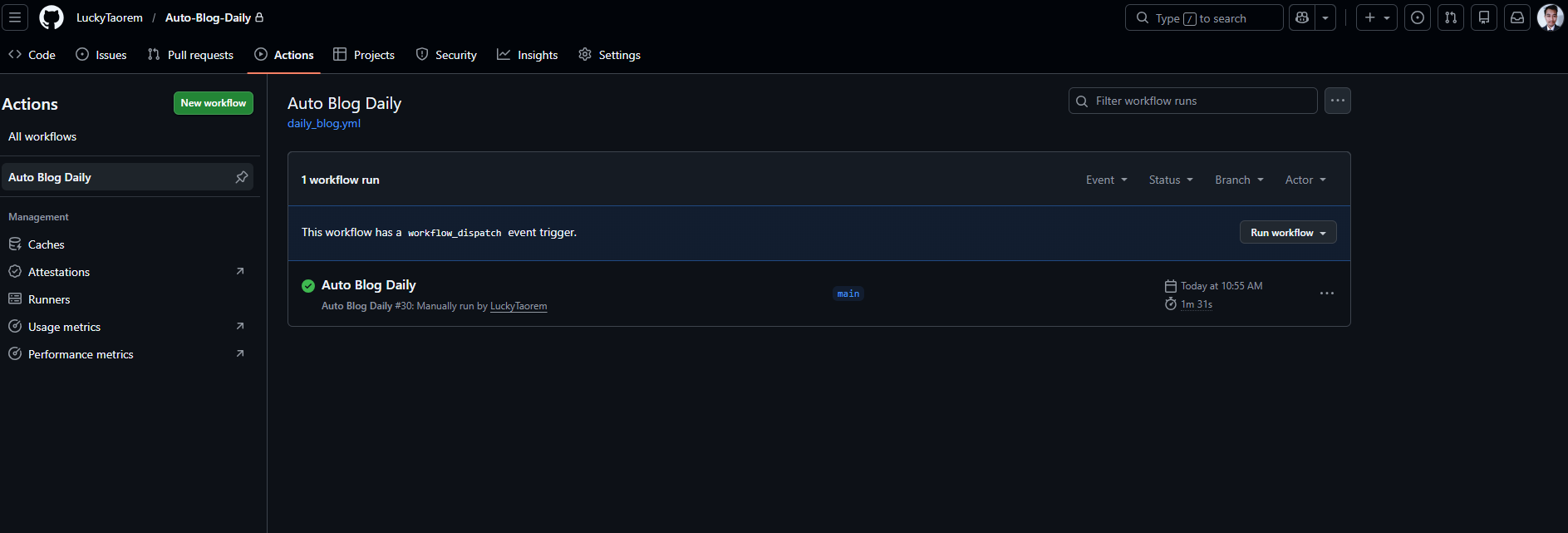
- The Trigger (GitHub Actions): A cron schedule tells our GitHub runner to wake up at a specific time (e.g., 8:00 AM every day).
- The Brains (AI API): The runner executes a Python script that sends a prompt to an AI API, asking it to write an article.
- The Destination (WordPress): Python formats the AI’s response into JSON and sends an authenticated
POSTrequest to your WordPress site’s REST API, instantly creating a live (or drafted) blog post.
Prerequisites
To follow along, you will need:
- A self-hosted WordPress site.
- A GitHub account.
- An API key for your chosen AI provider.
- Basic familiarity with Python (
requestslibrary).
Step 1: Setting up WordPress Application Passwords
To let Python securely talk to your WordPress site without hardcoding your actual admin password, we need to generate an Application Password. This is a feature built into WordPress specifically for REST API authentication.
- Log in to your WordPress Admin Dashboard.
- Go to Users > Profile.
- Scroll down to the Application Passwords section.
- Enter a name for the app (e.g., “Python Auto-Blogger”) and click Add New Application Password.
- Copy the 24-character password generated. Save this immediately, as WordPress will not show it to you again.
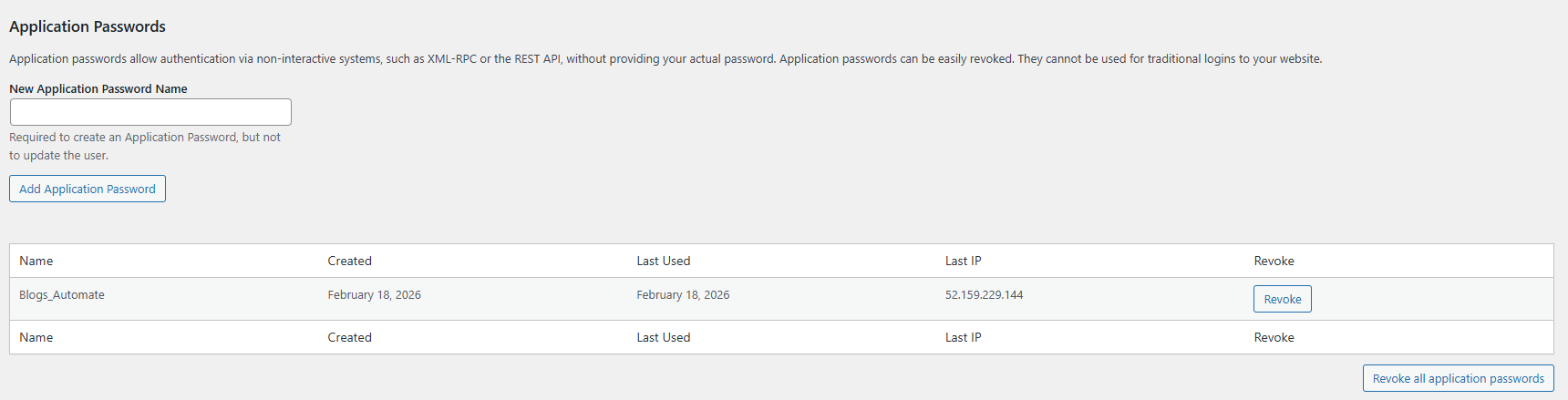
Note: Your WordPress site must have HTTPS enabled for Application Passwords to work securely via the REST API.
Step 2: Writing the Python Script
Now, let’s write the Python script that does the heavy lifting. Create a file named auto_blogger.py.
We will use the requests library to handle our HTTP calls. The script is broken down into three main phases: fetching the AI content, formatting it, and pushing it to WordPress.
import os
import requests
import json
import base64
from datetime import datetime

# 1. Load Environment Variables (Set these in GitHub Secrets later)
WP_USER = os.environ.get("WP_USER")
WP_APP_PASSWORD = os.environ.get("WP_APP_PASSWORD")
WP_BASE_URL = os.environ.get("WP_BASE_URL") # e.g., https://yoursite.com
AI_API_KEY = os.environ.get("AI_API_KEY")

def generate_ai_content():
    """
    Calls an AI API to generate a blog post.
    Replace the endpoint and payload with your specific AI provider's details.
    """
    # Example using a generic AI completion endpoint (adapt for Gemini, OpenAI, etc.)
    ai_url = "https://api.your-ai-provider.com/v1/completions"

    headers = {
        "Authorization": f"Bearer {AI_API_KEY}",
        "Content-Type": "application/json"
    }

    prompt = "Write a 500-word informative blog post about the future of Artificial Intelligence in web development. Include HTML formatting like <h2> and <p> tags."

    payload = {
        "model": "text-generation-model",
        "prompt": prompt,
        "max_tokens": 1000
    }

    print("Fetching content from AI...")
    response = requests.post(ai_url, headers=headers, json=payload)
    response.raise_for_status()

    data = response.json()
    # Extract the generated text (this path depends on the API response structure)
    return data['choices'][0]['text']

def publish_to_wordpress(title, content):
    """
    Pushes the generated content to WordPress via the REST API.
    """
    wp_api_url = f"{WP_BASE_URL}/wp-json/wp/v2/posts"

    # Encode WordPress credentials for Basic Auth
    credentials = f"{WP_USER}:{WP_APP_PASSWORD}"
    token = base64.b64encode(credentials.encode()).decode('utf-8')

    headers = {
        "Authorization": f"Basic {token}",
        "Content-Type": "application/json"
    }

    post_data = {
        "title": title,
        "content": content,
        "status": "publish", # Change to "draft" if you want to review before going live
        "categories": [1] # Replace with your specific category ID
    }

    print(f"Publishing to WordPress: {title}...")
    response = requests.post(wp_api_url, headers=headers, json=post_data)

    if response.status_code == 201:
        print(f"Success! Post URL: {response.json().get('link')}")
    else:
        print(f"Failed to publish. Status: {response.status_code}")
        print(response.text)

if __name__ == "__main__":
    try:
        # Generate the content
        article_content = generate_ai_content()

        # Create a dynamic title
        today_date = datetime.now().strftime("%B %d, %Y")
        article_title = f"The Evolution of Web AI - {today_date}"

        # Publish
        publish_to_wordpress(article_title, article_content)

    except Exception as e:
        print(f"An error occurred: {e}")
Understanding the Code
- Authentication: The WordPress REST API expects Basic Auth when using Application Passwords. We take your username and the app password, join them with a colon, encode them in Base64, and pass them in the headers.
- Payload: The
post_datadictionary defines exactly what WordPress creates. Setting"status": "publish"pushes it live immediately. If you prefer to review AI content first, change this to"draft". - HTML Formatting: Notice that we specifically prompted the AI to output HTML tags. The WordPress REST API
contentfield accepts HTML, which ensures your headers, paragraphs, and lists look correct out of the box.

Step 3: Securing Your Credentials with GitHub Secrets
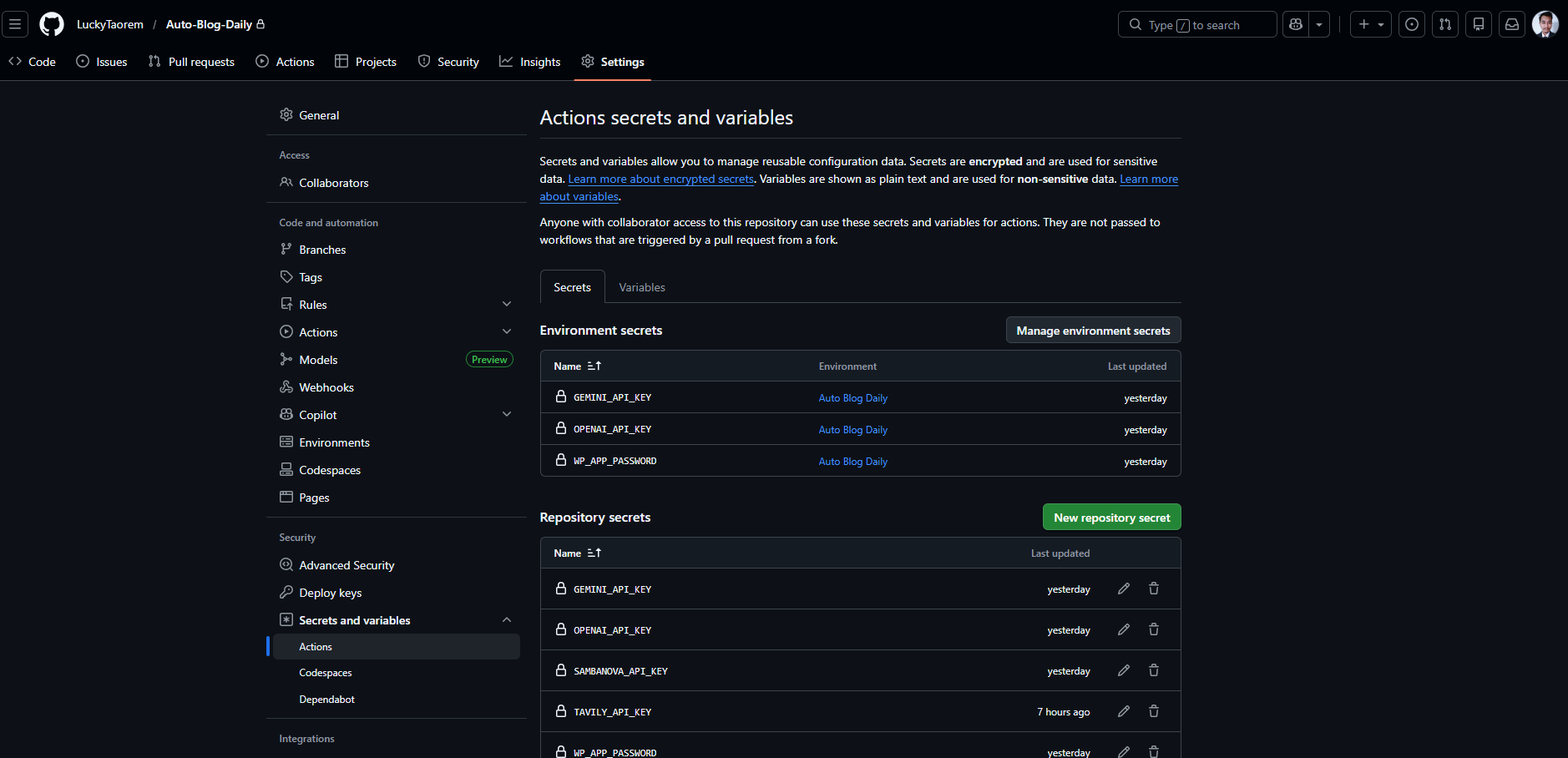
Hardcoding API keys is a major security risk. Since we are hosting this code on GitHub, we need to use GitHub Secrets to securely inject our credentials into the runner environment.
- Create a new repository on GitHub and push your
auto_blogger.pyfile to it. - Go to your repository Settings.
- On the left sidebar, navigate to Secrets and variables > Actions.
- Click New repository secret.
You need to add the exact environment variables our Python script is looking for:
WP_USER: Your WordPress username or email.WP_APP_PASSWORD: The 24-character application password.WP_BASE_URL: Your site URL (e.g.,https://mywordpressblog.com).AI_API_KEY: Your AI provider’s secret key.
Step 4: Automating with GitHub Actions (The Cron Job)
Now for the magic. We don’t want to run this script manually; we want a server to do it for us while we sleep. GitHub Actions allows us to define workflows using YAML files, and it supports POSIX cron syntax for scheduling.
In your repository, create the following directory structure: .github/workflows/. Inside that folder, create a file named scheduler.yml.
Paste the following configuration into the YAML file:
name: WordPress AI Auto-Blogger

# Define when this workflow should run
on:
  schedule:
    # This cron syntax runs the script every day at 08:00 UTC
    - cron: '0 8 * * *'

  # This allows you to manually trigger the workflow from the GitHub UI for testing
  workflow_dispatch:

jobs:
  build-and-publish:
    runs-on: ubuntu-latest

    steps:
      # Step 1: Check out the repository code
      - name: Checkout code
        uses: actions/checkout@v3

      # Step 2: Set up the Python environment
      - name: Set up Python
        uses: actions/setup-python@v4
        with:
          python-version: '3.10'

      # Step 3: Install required libraries
      - name: Install dependencies
        run: |
          python -m pip install --upgrade pip
          pip install requests

      # Step 4: Run the Python script with our injected secrets
      - name: Execute Python Script
        env:
          WP_USER: ${{ secrets.WP_USER }}
          WP_APP_PASSWORD: ${{ secrets.WP_APP_PASSWORD }}
          WP_BASE_URL: ${{ secrets.WP_BASE_URL }}
          AI_API_KEY: ${{ secrets.AI_API_KEY }}
        run: python auto_blogger.py
Breaking Down the Workflow:
cron: '0 8 * * *': This is standard crontab syntax. It tells GitHub to spin up a virtual machine at exactly 08:00 UTC every day. You can adjust this using a tool like Crontab Guru to fit your specific timezone and frequency.workflow_dispatch: This is a lifesaver for development. It adds a “Run workflow” button in the GitHub Actions tab so you can test your pipeline without waiting for the scheduled time.- The Runner (
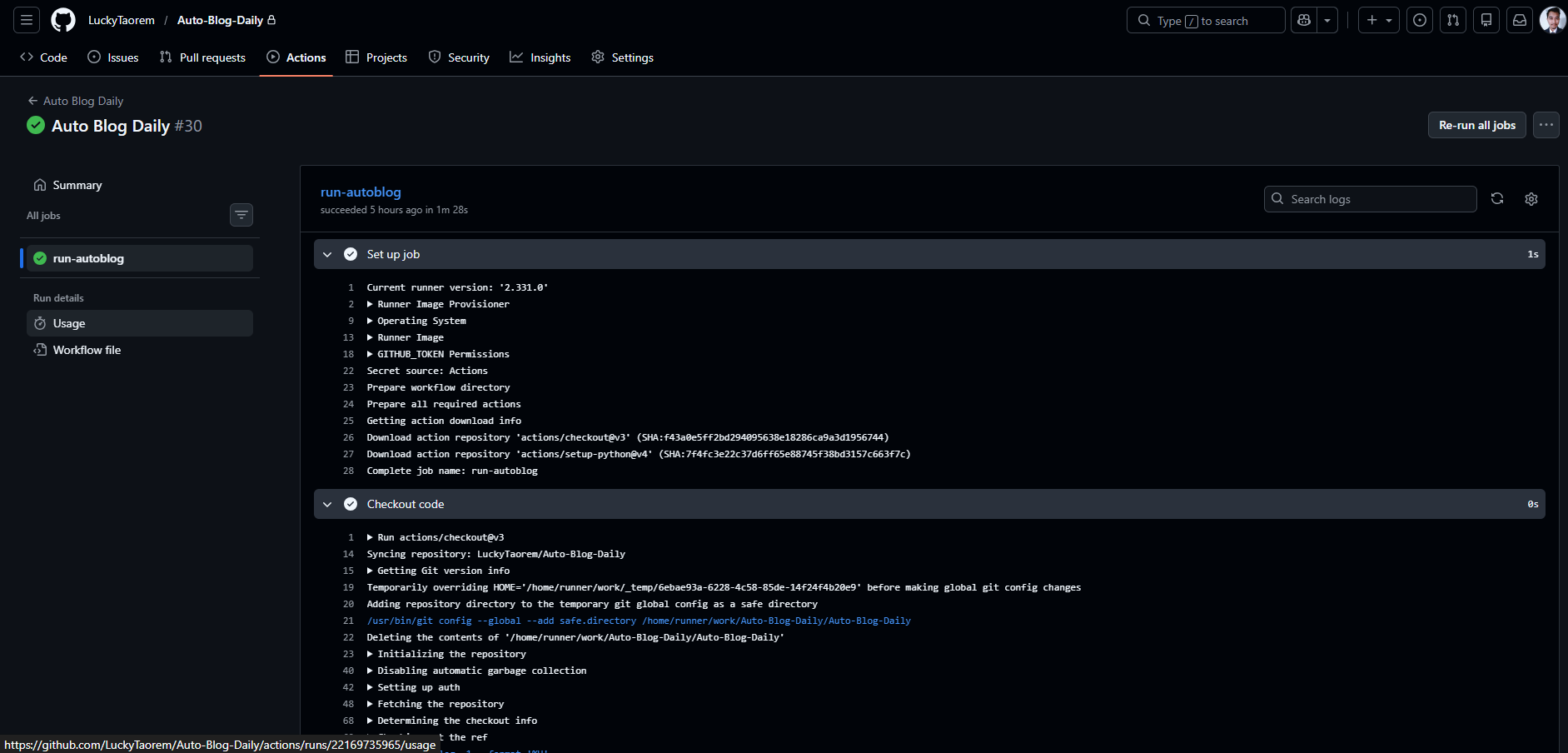
ubuntu-latest): GitHub provisions a fresh Ubuntu Linux environment. It pulls your code, installs Python 3.10, usespipto install therequestsmodule, and finally executes your script while securely passing the secrets.
Troubleshooting Common Errors
When combining APIs, things can occasionally fail. Here are the most common errors you might encounter in your GitHub Actions logs:
- 401 Unauthorized (WordPress REST API):
- Cause: Your Application Password is wrong, or your server is blocking Basic Auth.
- Fix: Double-check your GitHub Secrets. Ensure your WordPress site is running HTTPS. If you have a security plugin (like Wordfence) or a host-level firewall, ensure it isn’t blocking requests to
/wp-json/.
- 403 Forbidden (WordPress REST API):
- Cause: The user account tied to the Application Password doesn’t have the proper permissions.
- Fix: Ensure the
WP_USERis an Administrator or Editor.
- JSONDecodeError:
- Cause: The AI generated an invalid response, or the API returned an HTML error page (like a 502 Bad Gateway) instead of JSON.
- Fix: Add robust error handling in your Python script to catch non-JSON responses before trying to parse them.
Conclusion
By combining the WordPress REST API, Python, and GitHub Actions, you have successfully built a free, serverless infrastructure for automated content generation. This architecture isn’t just limited to AI blogging; you can modify the Python script to pull in weather data, financial news, or even summarize daily GitHub commits, pushing them all directly to your WordPress frontend.
Happy automating!